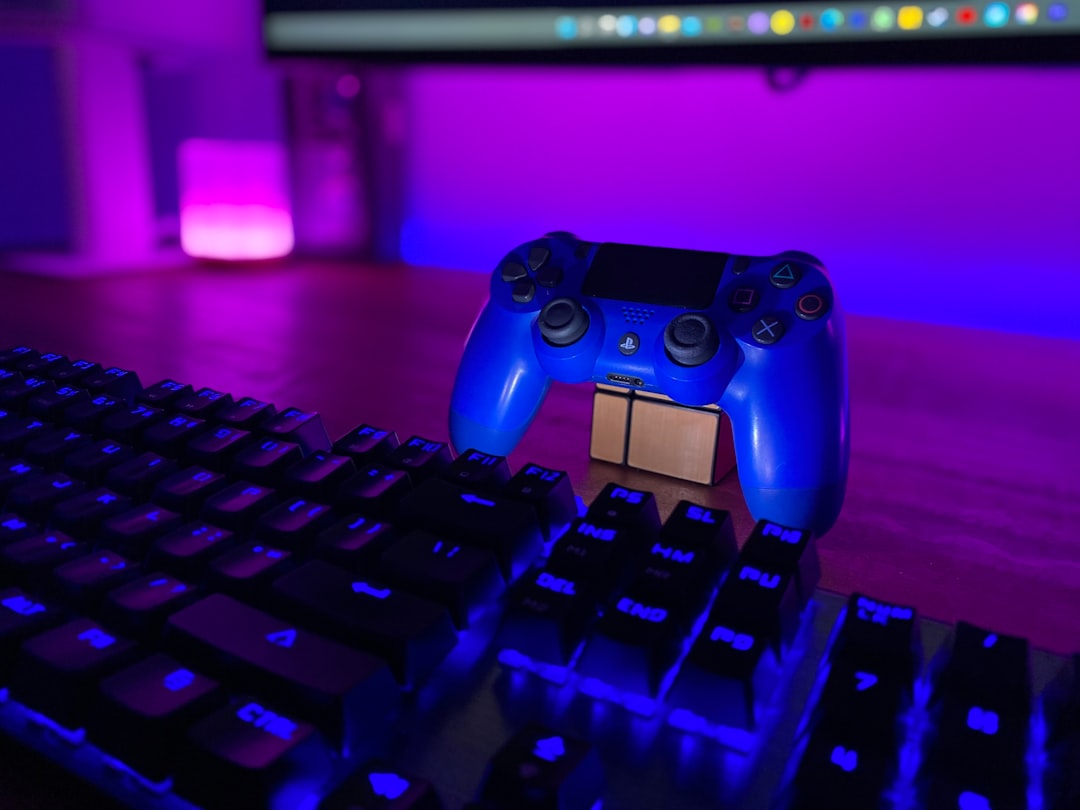
Finding the best controller settings for FPS games is less about copying a pro player’s exact numbers and more about building a setup you can trust under pressure. This guide gives you a reusable checklist for dialing in sensitivity, aim response, deadzones, button layout, and assist options across popular shooters, with practical advice for different playstyles and skill levels. The goal is simple: help you make cleaner adjustments, avoid common setup mistakes, and know when a patch or a new season is a real reason to retune your controls.
Overview
If you play competitive shooters on controller, your settings shape almost every fight before it starts. The right setup can make tracking steadier, recoil control less chaotic, and close-range turns more reliable. The wrong setup can make even a strong player feel inconsistent from match to match.
The problem is that “best controller settings FPS” is usually presented as a single answer. In practice, there is no universal best sensitivity setting for every game, every input device, or every player. Popular FPS games handle aim acceleration, response curves, deadzones, and aim assist differently. A setting that feels crisp in one title may feel slippery or heavy in another.
That is why this article works better as a settings hub than a list of magic numbers. Use it as a checklist before you lock in a configuration for games like Call of Duty, Apex Legends, Halo, Fortnite’s shooter modes, Rainbow Six Siege, XDefiant-style arena shooters, or extraction shooters with slower pacing. The principles stay useful even when new game updates change tuning behind the scenes.
Start with three assumptions:
- Your ideal settings should support consistency, not highlight clips.
- You should change one category at a time, not your whole setup at once.
- Your settings are only good if they hold up across several sessions, not one lucky match.
Before you fine-tune anything, set a simple baseline. Pick a comfortable field of view if the game offers it, turn off unnecessary controller vibration if it distracts you, and spend at least 15 to 20 minutes in a training range or private match. Your first pass is not about perfection. It is about building a stable starting point.
Checklist by scenario
Use the scenarios below to choose a starting direction based on how you actually play. This is the fastest way to build a sensible controller aim settings FPS games setup without overcomplicating the process.
Scenario 1: You are new to controller FPS games
If you are switching from mouse and keyboard, or coming back after a long break, your biggest risk is choosing settings that are too fast. High sensitivity can feel impressive in a menu video, but for newer players it often causes overcorrection and poor target tracking.
Start here:
- Use a medium overall sensitivity rather than a high one.
- Keep horizontal and vertical sensitivity close together unless the game clearly benefits from separating them.
- Choose a standard or classic aim response curve before experimenting with dynamic or aggressive curves.
- Set deadzones as low as possible without stick drift.
- Use default aim assist settings unless you have a clear reason to change them.
- Test ADS sensitivity separately from hip-fire sensitivity.
Your goal is to build a setup that lets you stay on target during simple strafes. If your reticle jumps past enemies, slow down. If turning feels delayed and you lose every close-range fight, raise sensitivity in small steps.
Scenario 2: You mostly take close-range fights
Players who favor SMGs, shotguns, aggressive entry play, or fast respawn modes need quicker turns and stronger control during panic moments. This is where many players want the best controller setup for shooters, but speed without stability creates more missed shots than won duels.
Prioritize these settings:
- Slightly higher hip-fire sensitivity for fast target switching.
- A controlled ADS speed that is still slow enough for tracking.
- A response curve that feels immediate without becoming twitchy.
- Low input delay from your display and platform setup if possible.
- Tactical button mapping if you crouch or slide often during fights.
For close-range players, the test is simple: can you snap to a second target without losing your first burst of accuracy? If yes, your settings are in the right range. If you turn well but cannot hold center mass, your setup is probably too fast or too reactive.
Scenario 3: You play mid-range tracking weapons
If your game favors assault rifles, balanced loadouts, or long lanes with steady recoil control, your settings should help with sustained aim rather than pure turning speed. This is the most common profile in multiplayer FPS games, and it usually benefits from moderation.
Build around:
- Medium hip-fire sensitivity.
- Slightly lower ADS sensitivity than hip-fire.
- Minimal deadzone without introducing drift.
- Predictable aim curve over flashy responsiveness.
- A consistent zoom multiplier if the game offers multiple optic levels.
This setup should let you transition from target acquisition to tracking without feeling like the reticle suddenly changes personality. If recoil control feels shaky, do not assume the weapon is the problem. Often your ADS speed is just a little too high.
Scenario 4: You prefer long-range precision or tactical shooters
Games with slower movement, lower time-to-kill, or high punishment for missed shots reward restraint. In these shooters, a controller settings guide should always emphasize precision first. Rainbow Six-style engagements, marksman-heavy loadouts, and careful peek battles all benefit from a lower and steadier aim profile.
Use this checklist:
- Lower ADS sensitivity for finer crosshair placement.
- Keep response curves neutral and easy to predict.
- Avoid extreme acceleration if the game lets you adjust it.
- Use per-zoom settings only if you will actually practice them.
- Test your setup on head-height pre-aim, not just target dummy flicks.
In tactical shooters, the right settings often feel slightly slower than expected. That is normal. If you can enter a room with your crosshair already controlled and stable, you are gaining more than a flashy turn speed would provide.
Scenario 5: You play battle royale or extraction shooters
These games ask more from your settings because fights happen at mixed ranges and under uneven conditions. You may need to track a target at distance, clear a building, then survive a third-party push immediately after. This makes balance more important than specialization.
For battle royale and extraction formats:
- Choose a sensitivity that feels dependable in both panic turns and medium-range beams.
- Do not over-tune for one weapon class.
- Keep deadzones low but stable because long sessions make small control flaws more obvious.
- Test looting, inventory movement, and map navigation if those use the same sticks.
- Make sure sprint, crouch, heal, and interact bindings do not create finger conflicts.
If you are also rotating between slower, more methodical shooters, our guide to Best Extraction Shooters to Play Right Now pairs well with this article because those games often expose weak settings faster than fast respawn modes do.
Scenario 6: You copy settings often and never feel settled
This is common, especially during seasonal meta shifts and creator-driven trend cycles. A streamer’s setup may work because of their stick control, monitor, controller wear, and playtime. If you keep changing values every few days, your problem may not be your settings at all. It may be your testing process.
Try this reset:
- Pick one baseline and commit to it for at least a week.
- Change only one variable per session.
- Write down how each adjustment affects close, mid, and long-range fights.
- Ignore “best sensitivity settings controller” videos until your sample size is bigger than one bad night.
Consistency usually beats novelty. The more often you reset your muscle memory, the harder it is to judge what actually improved.
Scenario 7: You are playing cross-platform and switching systems
Cross-platform gaming adds another wrinkle. A shooter can feel different across console, PC with controller, cloud streaming, or even across display setups. Input latency, frame pacing, and aim feel may change even if the menu values look identical.
Use this checklist when switching platforms:
- Recheck deadzones after moving to a different controller.
- Retest sensitivity if frame rate or field of view changes.
- Watch for display settings like game mode or motion processing.
- Do not assume cloud streaming aim will feel identical to local play.
If platform differences matter to your setup, our Cloud Gaming Comparison 2026: GeForce Now vs Xbox Cloud vs Luna and More is a useful companion read.
What to double-check
Once you have a workable baseline, these are the settings categories worth reviewing carefully. Most controller problems in FPS games come from one of these areas, not from some hidden advanced option.
Sensitivity and ADS multipliers
Hip-fire sensitivity handles turning and broad target acquisition. ADS sensitivity handles your finer aiming once you are committed to a shot. If both feel wrong, start with hip-fire. If only your recoil and tracking feel off, inspect ADS first.
A good rule: if you lose fights because you cannot turn, raise hip-fire slightly. If you lose fights because you cannot stay on target, lower ADS slightly.
Deadzones
Deadzones determine how much stick movement is required before the game registers input. Lower deadzones usually feel more responsive, but they can also expose stick drift or make aim feel noisy. Raise them only enough to remove unwanted input. More is not better.
Response curve or aim curve
This setting changes how quickly your reticle accelerates as you move the stick. Standard or classic curves usually feel more linear and easier to learn. Dynamic or aggressive curves may feel faster at first but can become harder to control under stress.
If your aim feels inconsistent even though your sensitivity seems fine, your response curve may be the real issue.
Aim assist behavior
Aim assist can make tracking and target slowdown feel very different from game to game. When a patch changes it, the same sensitivity may suddenly feel too sticky or too loose. Unless you understand a game’s options well, start with the default assist profile and evaluate from there.
The key question is not whether aim assist is on. It is whether your chosen sensitivity still lets you work with it rather than fight it.
Button layout
The best controller settings FPS discussion often ignores button layout, but layout matters in competitive play. If you jump, crouch, slide, or melee often, consider whether your current binding forces you to remove your thumb from the right stick at bad times. Tactical or bumper-based alternatives can help, especially in movement-heavy shooters.
Audio and hardware context
Settings do not exist in a vacuum. Poor audio cues can make your aim feel late because you are reacting late. An aging controller with uneven stick tension can make good settings feel bad. A budget setup can still perform well, but it is smart to separate input issues from tuning issues. If you are troubleshooting your full competitive setup, our guide to Best Gaming Headsets Under $100 for PC, PS5, and Xbox may help with the non-aim part of the equation.
Common mistakes
Most players do not need more advanced settings. They need fewer avoidable mistakes. These are the habits that most often derail a good setup.
- Changing everything at once: If you alter sensitivity, deadzone, aim curve, and button layout together, you will not know what helped.
- Testing only in the firing range: Range performance matters, but live matches expose movement, panic turns, and tracking under pressure.
- Chasing pro settings blindly: Pro and creator setups are useful reference points, not guaranteed answers.
- Using sensitivity that is too high for your role: Fast settings can be fun, but many players perform better one step slower than they expect.
- Ignoring stick drift: If your reticle moves on its own, fix that first before blaming aim assist or recoil.
- Copying old patch advice: Live-service game news and balance updates can change how aiming feels over time.
- Retuning after every bad session: One off-night is not strong evidence that your settings are broken.
A useful rule for competitive play: if your results vary wildly, look for inconsistency in your routine before you assume the game’s settings menu is the problem.
When to revisit
You do not need to tweak your controller every week. You do need to revisit it when something meaningful changes. This is where a repeat-visit settings hub becomes genuinely useful.
Recheck your settings when:
- A seasonal update changes movement, weapon handling, or aim assist feel.
- You switch controllers or notice new stick drift.
- You move to a new display, console, PC, or cloud setup.
- You change your main game mode from casual respawn to ranked, battle royale, or tactical play.
- You adopt a new role, weapon class, or team strategy.
- Your game adds new advanced aim options or per-zoom controls.
A practical revisit routine looks like this:
- Play two or three sessions on your current settings before changing anything.
- Identify one recurring problem, such as over-aiming at close range or poor tracking at mid-range.
- Adjust only the setting most likely tied to that problem.
- Test in both practice and real matches.
- Keep notes so you can return to a known good baseline.
If you play a lot of live-service shooters, it also helps to track broader update cycles. Our Live-Service Game Roadmap Tracker: Major Seasons, Battle Passes, and Patch Cadence is useful for knowing when game-wide changes may justify a fresh pass on your settings.
The best controller settings for popular FPS games are the ones you can return to, trust, and adjust with intention. Treat your setup like part of your competitive practice, not a superstition. Build a baseline, test by scenario, fix one issue at a time, and revisit only when the game, your hardware, or your role actually changes. That approach will hold up far longer than any one-number sensitivity trend.